How to Set Up Telegram for Your ClawMesh OpenClaw Bot
Connect your ClawMesh OpenClaw AI coding agent to Telegram in 5 minutes. This guide covers creating a Telegram bot, getting your Bot Token, and completing the secure pairing process.
- ›Create a Telegram bot with @BotFather
- ›Enter Bot Token in ClawMesh console
- ›Complete secure pairing with one-time code
- ›Start chatting with your AI coding agent
Get Started
Your Telegram bot is ready
Start building powerful AI agents that you can chat with directly from Telegram.
Why Use Telegram with ClawMesh?
Telegram is the most popular messaging channel for ClawMesh users. It gives you instant, mobile-friendly access to your OpenClaw AI coding agent without needing to open the ClawMesh console every time.
You can send code snippets, ask debugging questions, request refactors, or generate new functions — all from a Telegram chat window. The ClawMesh Telegram integration works through Telegram's official Bot API, meaning your OpenClaw bot behaves like any other Telegram bot.
Prerequisites
Before setting up Telegram on ClawMesh, you need:
- A ClawMesh account with an active project
- A Telegram account on any platform (phone or desktop)
Step 1: Create a Telegram Bot with @BotFather
Every Telegram bot requires a Bot Token — a unique authentication string that connects your ClawMesh OpenClaw instance to a specific Telegram bot. You get this token from Telegram's official bot management tool, @BotFather.
Here's how to get your Telegram Bot Token:
- Open Telegram and search for @BotFather (look for the verified account with blue checkmark)
- Start a conversation and send /newbot command
- Choose a display name for your bot (e.g., 'My OpenClaw Agent')
- Choose a username ending in 'bot' (e.g., 'my_openclaw_bot') — must be unique across Telegram
- BotFather responds with your Bot Token (formatted like 123456789:AAxxxxxxxxxxxxxxxxxxxxxxxxx)
- Copy this token — you'll paste it into ClawMesh in the next step
Watch: How to Get Your Telegram Bot Token
Step 2: Enter the Bot Token in ClawMesh
Now that you have your Telegram Bot Token, head to the ClawMesh console and navigate to your project's OpenClaw Pool page.
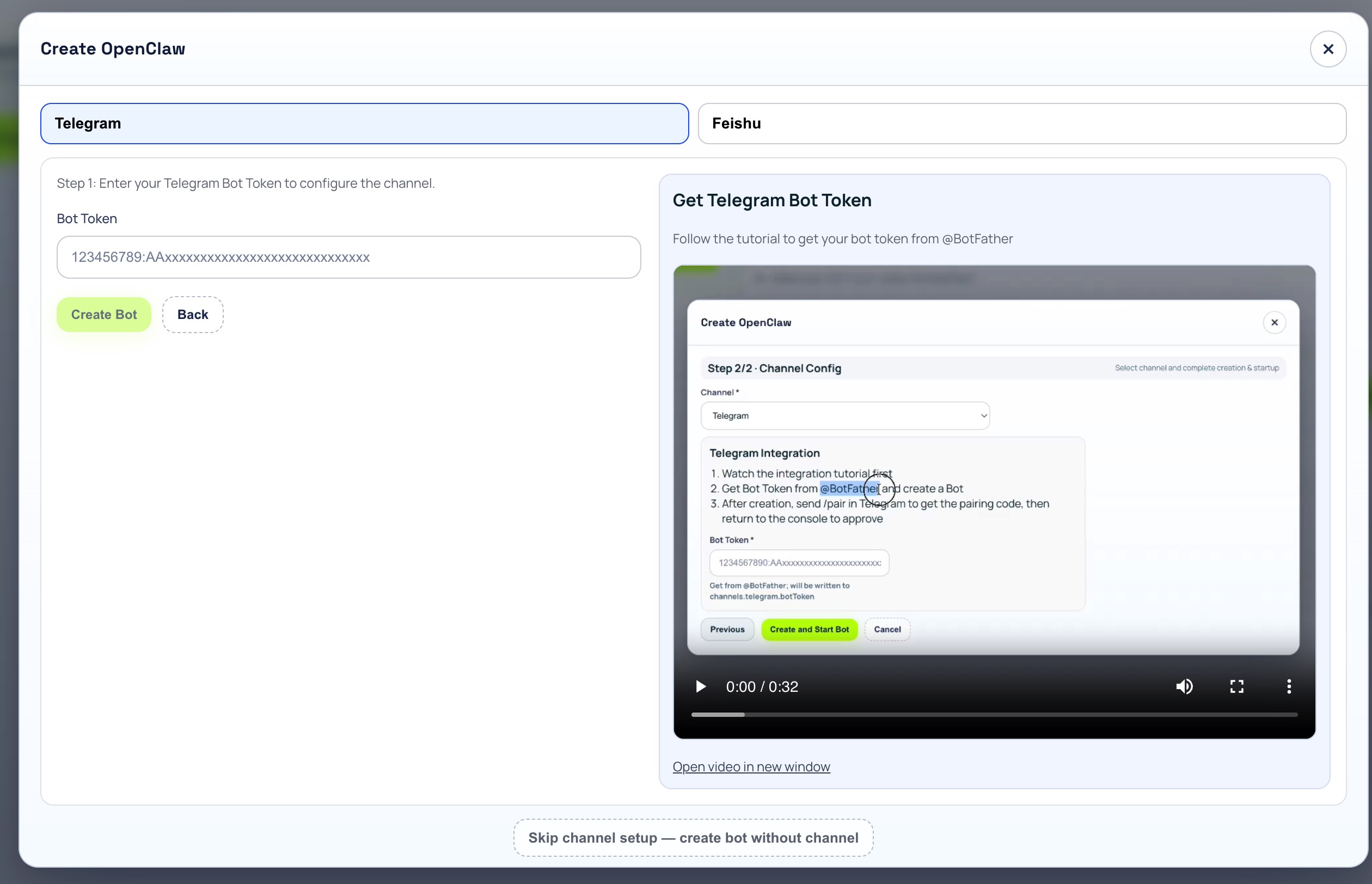
Click the green '+ Create OpenClaw' button to open the bot creation dialog. Select the Telegram tab at the top, paste your Bot Token into the input field, and click 'Create Bot'.
Alternatively, click 'Skip channel setup — create bot without channel' if you want to connect Telegram later through the Edit panel.
Step 3: Wait for Provisioning
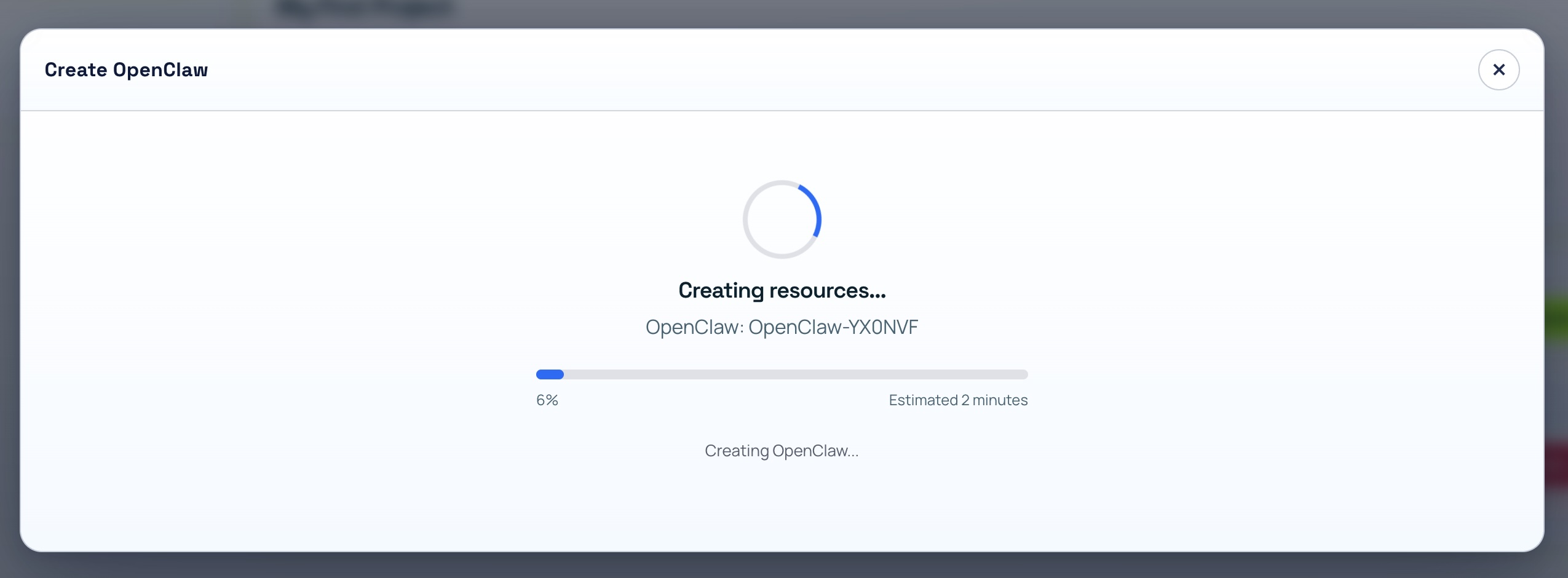
After clicking Create Bot, ClawMesh begins provisioning your OpenClaw instance — spinning up the container, configuring the AI model relay, and registering the Telegram webhook.
This typically takes about 2 minutes. You can close the dialog and let ClawMesh handle the rest in the background.
Step 4: Get the Pairing Code from Telegram
Once ClawMesh finishes provisioning, you'll see your bot in the list with status UNPAIRED. This means the container is running, but Telegram hasn't completed the secure pairing handshake yet.
To complete pairing:
- Open Telegram and search for your bot username (e.g., @my_openclaw_bot)
- Start a conversation and send /pair command
- Your bot responds with a one-time pairing code
- Copy this pairing code
Watch: How to Get the Telegram Pairing Code
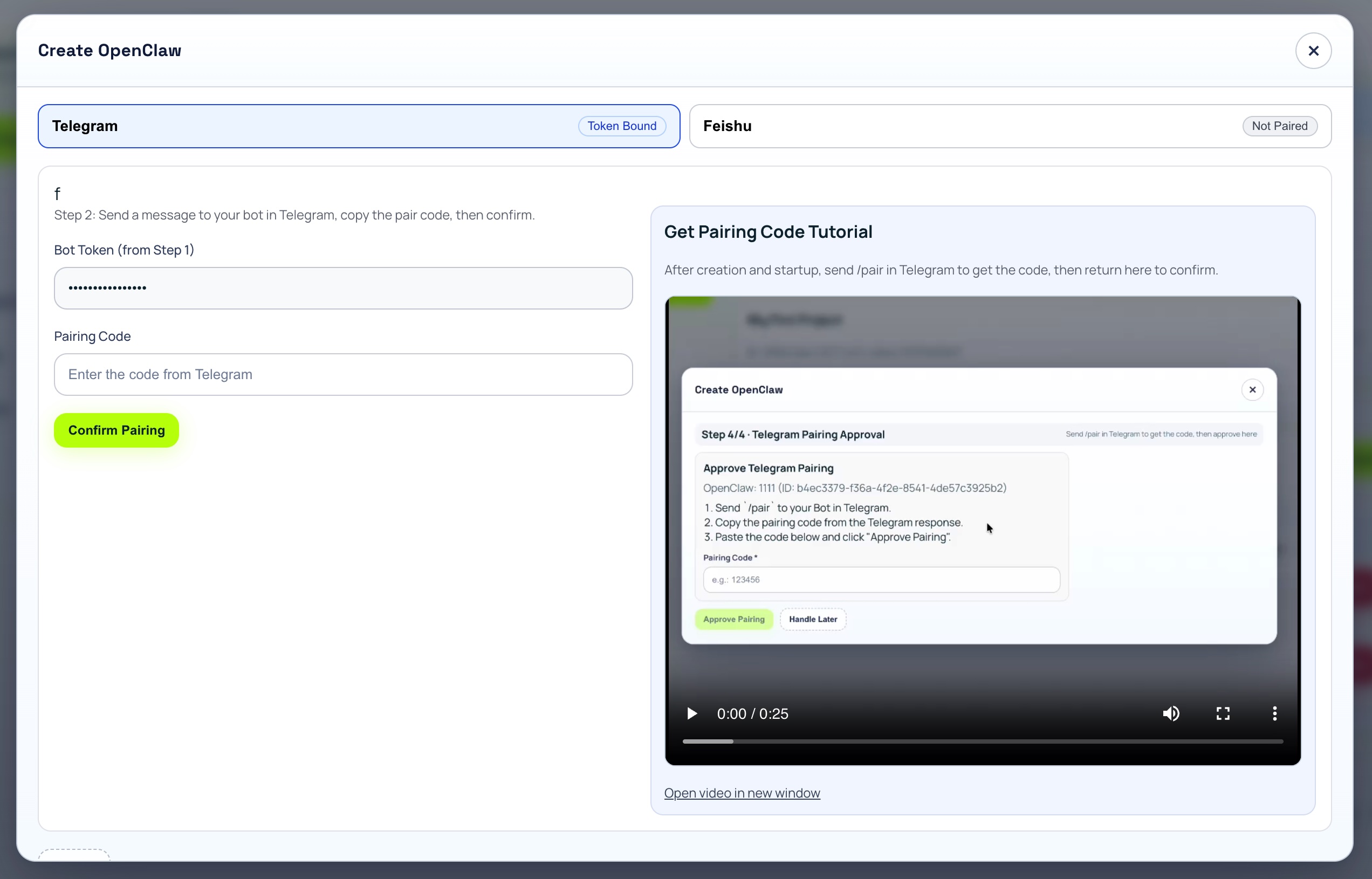
Step 5: Enter the Pairing Code in ClawMesh
With your pairing code copied from Telegram, switch back to the ClawMesh console.
Click the 'Pair' button in the Actions column for your bot. Enter the pairing code and click Confirm.
Step 6: Start Chatting with Your Bot
Once the pairing is complete, your bot's status changes from UNPAIRED to RUNNING. Go back to Telegram and start sending messages:
- 'Write a Python function that validates email addresses using regex'
- 'Review this code for bugs: [paste code]'
- 'Refactor this function to use async/await'
- 'Explain what this error means: [paste error]'
Every message consumes AI credits from your ClawMesh plan. Monitor your real-time usage on the project dashboard under Usage (USD).
Troubleshooting Common Telegram Setup Issues
Bot stays UNPAIRED after entering the code:
- Double-check you're entering the code in the correct ClawMesh project
- Try clicking Restart on the bot, then send /pair again in Telegram for a fresh code
Bot doesn't respond in Telegram
Check the bot's status in ClawMesh console — it should show RUNNING. If it shows STOPPED, click Start. If running but unresponsive, click Logs to check for errors. A Restart often resolves transient issues.
'Bot Token is invalid' error in ClawMesh
Make sure you copied the full token from @BotFather, including the numbers before the colon. The format should be 123456789:AAxxxxxxxxxxxxxxxxxxxxxxxxx. If the token was revoked, get a new one from BotFather using /token command.
Managing Your Telegram-Connected Bot
Once your Telegram integration is live, the ClawMesh console gives you full bot management:
- Logs — monitor incoming Telegram messages and AI responses in real time
- Terminal — open a web shell directly into the OpenClaw container
- Start / Stop / Restart — control the bot's lifecycle
- Edit — change Bot Token, switch channels, or update model settings
- Delete — permanently remove the bot
Related guides
Q&A
How long does bot provisioning take?
Typically about 2 minutes. ClawMesh handles container orchestration, AI model relay configuration, and Telegram webhook registration automatically.
Can I use one Telegram bot for multiple ClawMesh projects?
No, each Telegram bot can only be connected to one ClawMesh project. For multiple projects, create separate bots via @BotFather.
What does 'UNPAIRED' status mean?
UNPAIRED means the container is running but hasn't completed the Telegram pairing handshake. Send /pair to your Telegram bot to get a pairing code, then enter it in ClawMesh.
Is the pairing code secure?
Yes. The pairing code ensures only someone with access to both the Telegram bot and ClawMesh console can complete the connection, preventing unauthorized linking.
How do I change to a different Telegram bot?
Click the Edit button on your bot in ClawMesh console. You can update the Bot Token to point to a different Telegram bot, then Restart to apply changes.
What happens if I stop the bot?
Stopping the bot makes it unresponsive in Telegram. Starting it again resumes the connection. Your configuration and logs are preserved.