How to Set Up Feishu (Lark) with ClawMesh
Connect your ClawMesh OpenClaw AI coding agent to Feishu (Lark) for your team. This guide covers the QR code authorization flow, Lark bot creation, and pairing verification.
- ›QR code scan-and-authorize flow — no API credentials needed
- ›Create a Lark bot in your Feishu organization
- ›Entire team can access AI coding assistant in Feishu
- ›Setup takes under 5 minutes
Get Started
Your Feishu bot is ready
Start building powerful AI agents right inside your team's Feishu workspace.
Why Connect ClawMesh to Feishu?
If your team already communicates through Feishu (Lark), adding a ClawMesh-powered OpenClaw bot makes AI-assisted coding as easy as sending a message. Team members can ask coding questions, request code reviews, generate implementations, and debug errors directly in Feishu.
The ClawMesh Feishu integration creates a proper Lark bot within your organization with a BOT badge, rich text formatting, file sharing, and message history. Unlike building a custom Feishu bot from scratch — which involves registering an app on the Lark Open Platform, configuring OAuth, setting up event subscriptions, and managing webhook endpoints — the ClawMesh Feishu setup is a simple scan-and-authorize flow.
What You'll Need
Before starting the ClawMesh Feishu setup, make sure you have:
- A ClawMesh account with an active project — sign up at clawmesh.app
- A Feishu (Lark) account — the mobile app or desktop client
- Admin or member access to a Feishu organization — needed to authorize bot creation
Step 1: Select Feishu Tab in ClawMesh
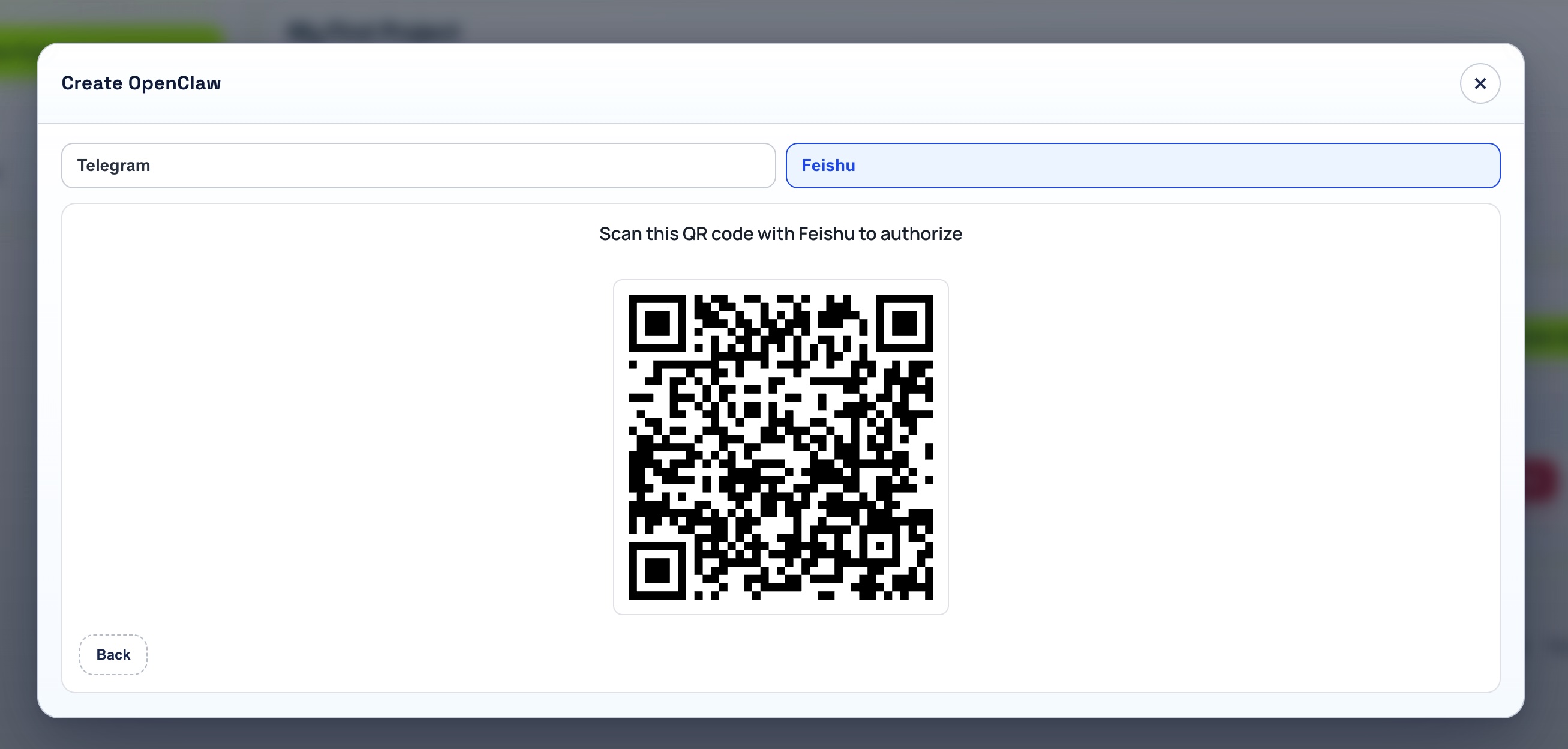
Log into the ClawMesh Console and navigate to your project's OpenClaw Pool page. Click the green '+ Create OpenClaw' button.
At the top of the dialog, click the Feishu tab. ClawMesh displays a QR code with the instruction 'Scan this QR code with Feishu to authorize.' This QR code contains an authorization link to the Lark Open Platform that will create a bot in your Feishu organization and connect it to your ClawMesh OpenClaw instance.
Step 2: Scan the QR Code with Feishu
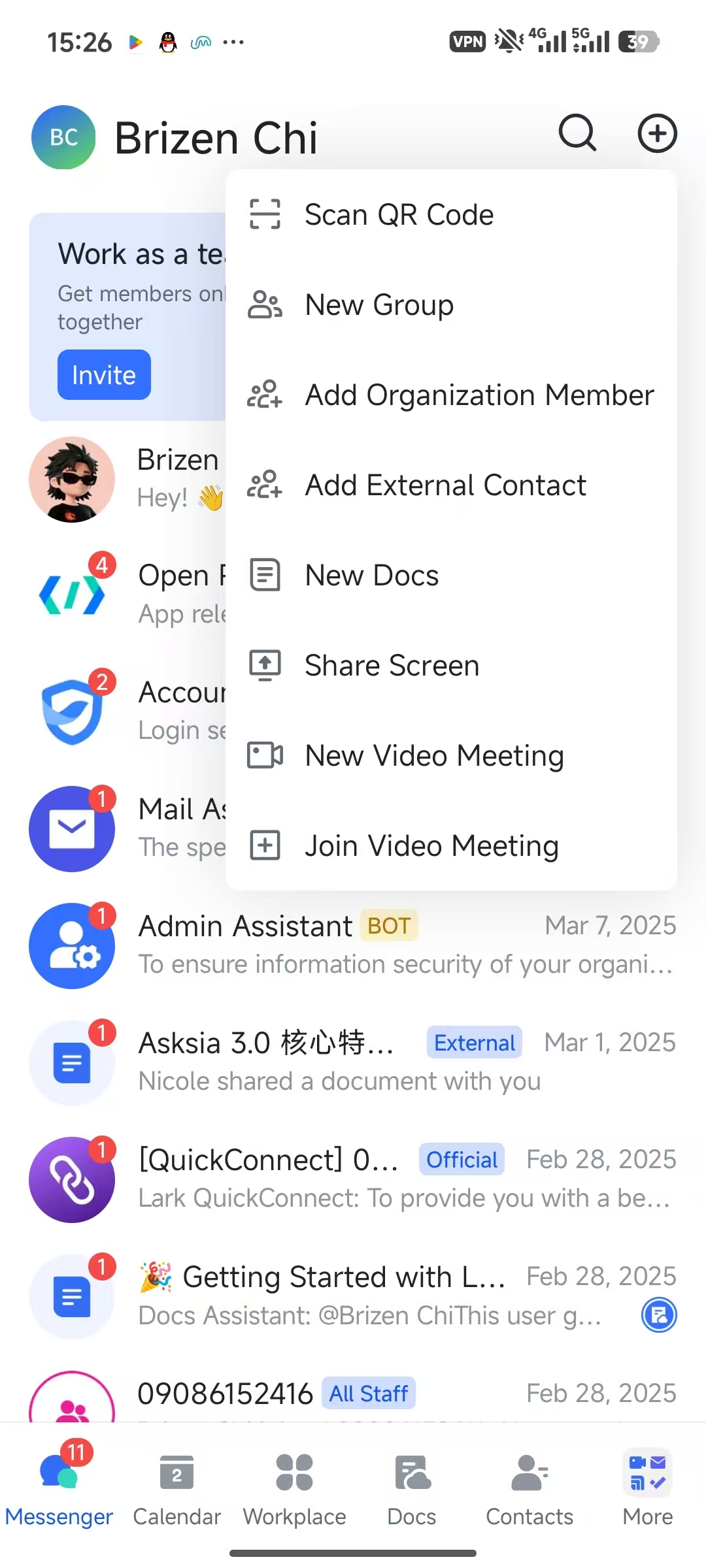
Switch to your Feishu (Lark) mobile app. From the Messenger screen, tap the '+' icon in the top-right corner to open the action menu.
Tap 'Scan QR Code' — the first option in the menu. Point your phone's camera at the QR code displayed on the ClawMesh console. Feishu scans it and automatically opens an authorization page in the Lark in-app browser.
Step 3: Create Your Lark Bot
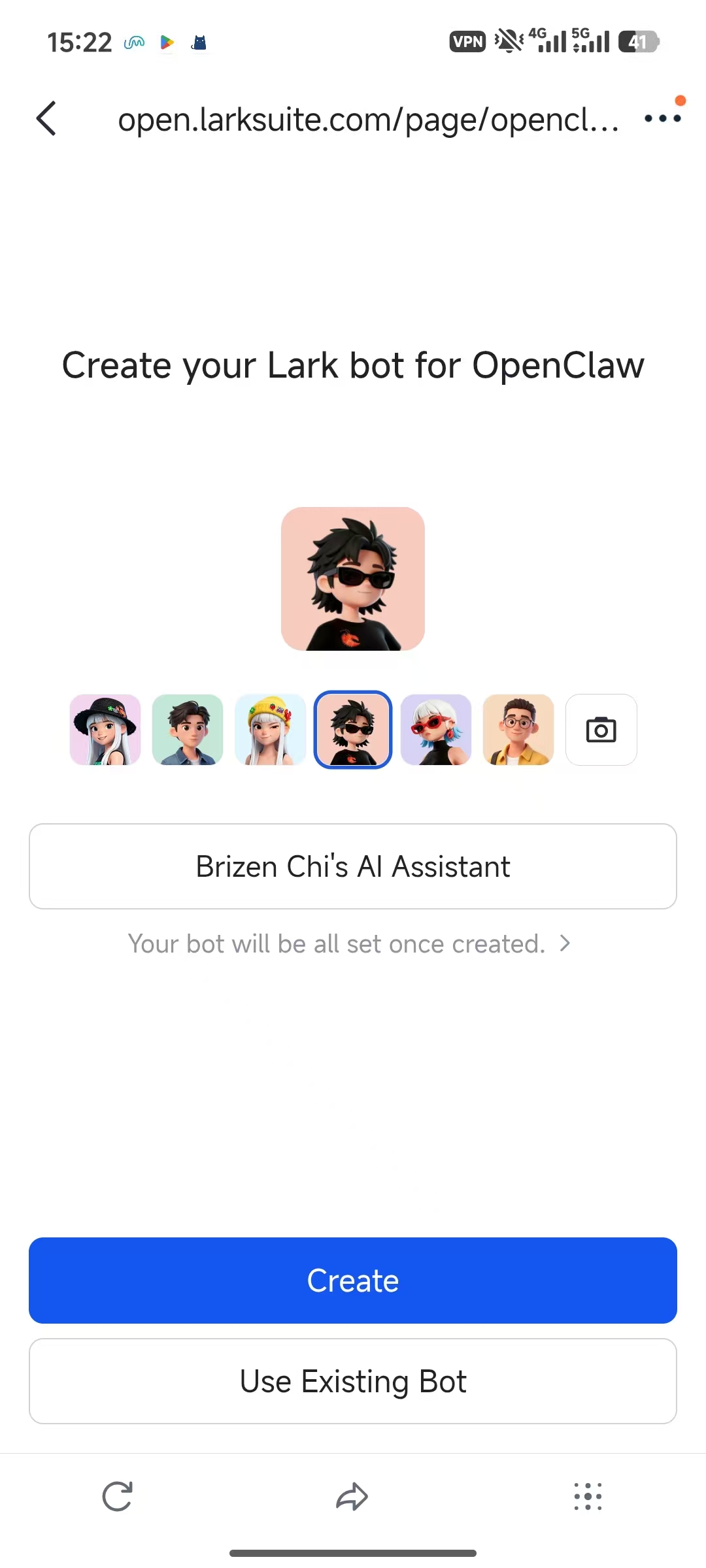
After scanning the QR code, Feishu opens a page titled 'Create your Lark bot for OpenClaw' at open.larksuite.com.
Configure your bot's appearance:
- Bot avatar — choose from pre-designed options or upload a custom image
- Bot name — pre-filled with a default like 'Your Name's AI Assistant'. Change it to whatever makes sense for your team (e.g., 'Code Assistant', 'OpenClaw Bot')
Step 4: Bot Created — Return to ClawMesh
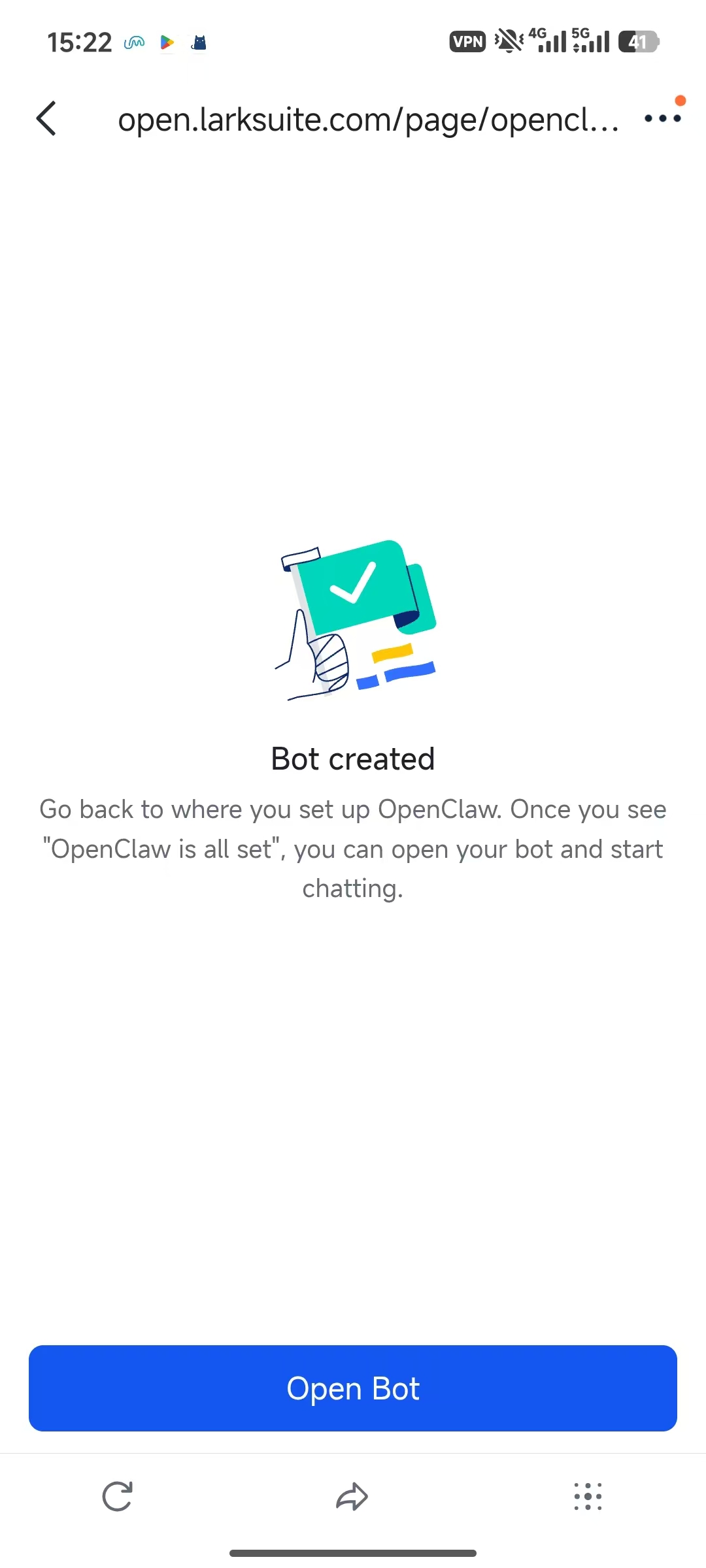
After tapping Create, Feishu processes the bot registration. Within a few seconds, you'll see:
- 'Bot created' confirmation with a checkmark
- Instructions: 'Go back to where you set up OpenClaw. Once you see OpenClaw is all set, you can open your bot and start chatting.'
- An 'Open Bot' button to jump directly into a Feishu chat with your new bot
Step 5: Verify the Pairing in ClawMesh
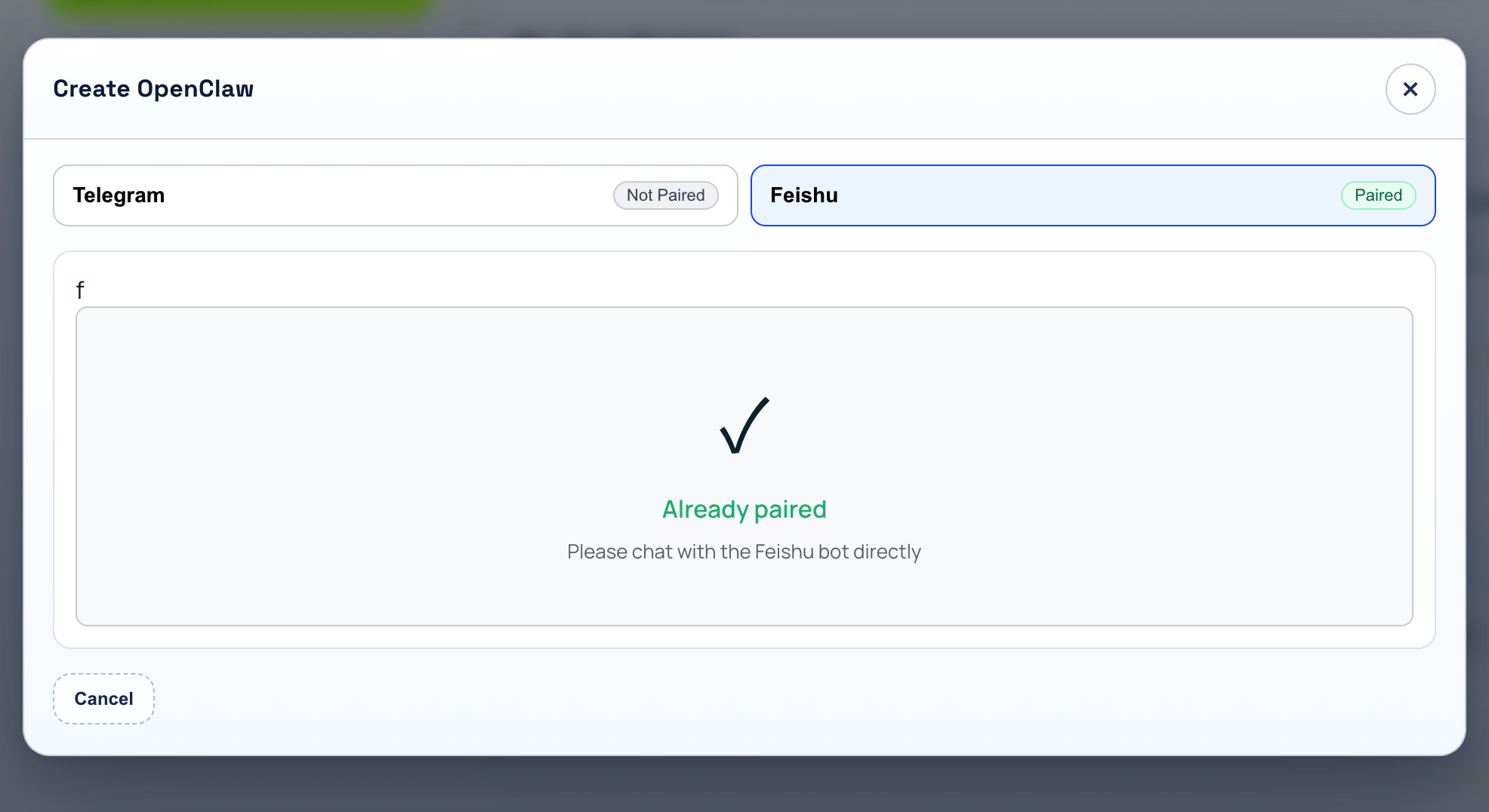
Back in the ClawMesh Console, the Create OpenClaw dialog automatically updates to reflect the successful Feishu pairing:
- Feishu tab shows a green 'Paired' badge
- A checkmark icon with 'Already paired' and message: 'Please chat with the Feishu bot directly.'
Step 6: Start Chatting with Your Bot
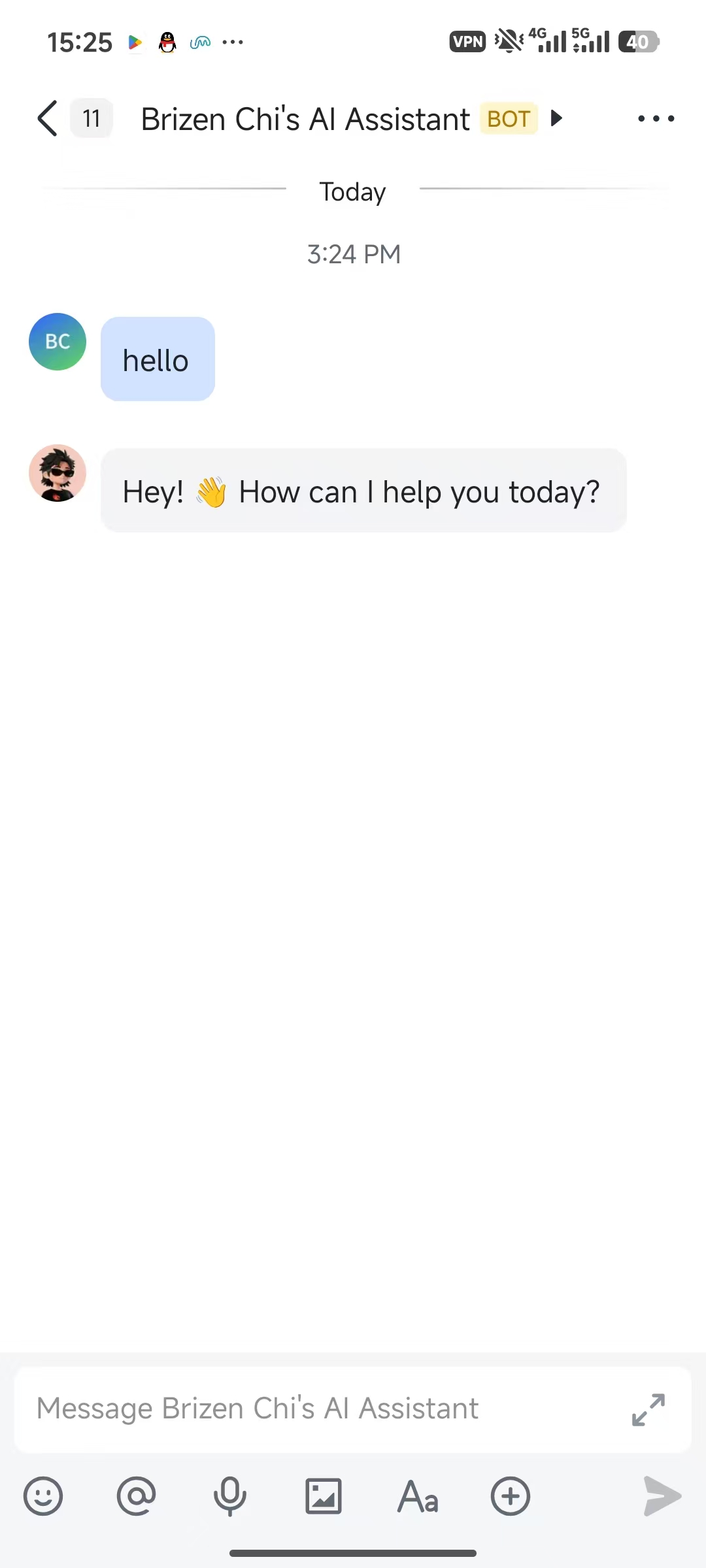
Open the Feishu (Lark) app and find your newly created bot in the chat list. It appears with the avatar and name you chose, along with a blue 'BOT' badge.
Send a message — even a simple 'hello' works — and your ClawMesh-hosted OpenClaw agent will respond. Try sending coding questions, pasting code for review, describing features you want implemented, or sharing error messages for debugging.
ClawMesh Feishu vs. Telegram Setup
Both channels work equally well with ClawMesh, but the setup flows differ:
- Feishu setup uses QR code scan-and-authorize — faster, no manual token copying or pairing code exchange
- Telegram setup requires @BotFather, copying Bot Token, pasting into ClawMesh, and a separate pairing code handshake — slightly more hands-on but works great for individual developers
If your team uses Feishu (Lark) as their primary communication tool, the ClawMesh Feishu integration is the clear choice — faster to set up and puts the OpenClaw bot directly where your team already collaborates.
Managing Your Feishu-Connected Bot
Once the Feishu channel is paired, your OpenClaw bot appears in the ClawMesh project's bot list with all standard management controls: Pair, Edit, Logs, Start, Stop, Restart, Terminal, and Delete.
- Logs — monitor incoming Feishu messages and OpenClaw responses in real time
- Edit — modify channel configuration or add Telegram as a second channel
- Stop — pauses the bot without disconnecting; Start resumes automatically
- Terminal — shell session into the OpenClaw container for advanced configuration
Troubleshooting Common Feishu Setup Issues
QR code won't scan: Make sure you're using the Feishu (Lark) app's built-in scanner — not your phone's default camera app. From Messenger, tap '+' then 'Scan QR Code'.
'Create' button doesn't respond
Check that you're logged into a Feishu organization with sufficient permissions. If you're using a personal Feishu account without an organization, bot creation may be restricted. Ask your Feishu admin for the appropriate access level.
Bot created but ClawMesh shows UNPAIRED
This can happen if the browser page loses connection during authorization. Go back to ClawMesh console and click Pair on your bot — it should detect the existing Feishu authorization. If not, try creating a new OpenClaw bot and scanning the QR code again.
Bot not responding in Feishu after pairing
Check the Logs panel in ClawMesh console. If messages aren't appearing, click Restart to re-establish the Feishu event subscription. If messages appear in logs but responses don't reach Feishu, verify you have remaining AI credits in the Usage dashboard.
Related guides
Q&A
Do I need a Feishu organization account to set up the bot?
Yes, you need admin or member access to a Feishu organization. Personal Feishu accounts without an organization may be restricted from bot creation. Ask your Feishu admin if you need access.
Can I use both Telegram and Feishu with the same OpenClaw bot?
No, each OpenClaw instance connects to one channel. To use both Telegram and Feishu, create separate OpenClaw bots for each channel from the ClawMesh console.
Is the QR code authorization secure?
Yes. The QR code contains an OAuth authorization URL that links your Feishu organization's bot to your ClawMesh account. ClawMesh handles the token exchange securely.
What happens if I stop the bot?
Stopping the bot makes it unresponsive in Feishu. Starting it again resumes the Feishu integration automatically — no re-pairing needed.
Can I customize my Lark bot's appearance after creation?
Yes. Go to the Lark Open Platform (open.larksuite.com) and edit your bot's profile, avatar, and name. Changes reflect in Feishu immediately.
How do I add the bot to a Feishu group?
Open the bot in Feishu and click 'Add to group' or invite it directly from within a group chat. Once added, mention the bot by typing @YourBotName to trigger responses.