Where do I get the Telegram bot token?
Open Telegram, chat with @BotFather, run /newbot, and copy the generated token into the ClawMesh Bot Token field.
This tutorial shows exactly how to link OpenClaw to Telegram with ClawMesh: create a bot in BotFather, paste the token, approve pairing, and start chatting. No servers, no config files, and no API key setup on your side.
In Create OpenClaw, keep Bot Type = OpenClaw and Template = openclaw/default. Enter a clear bot name (for example Customer Support Bot). Model/auth is already fixed to Anthropic (provided by ClawMesh), and the default model ID stays claude-sonnet-4-6. Click Next.
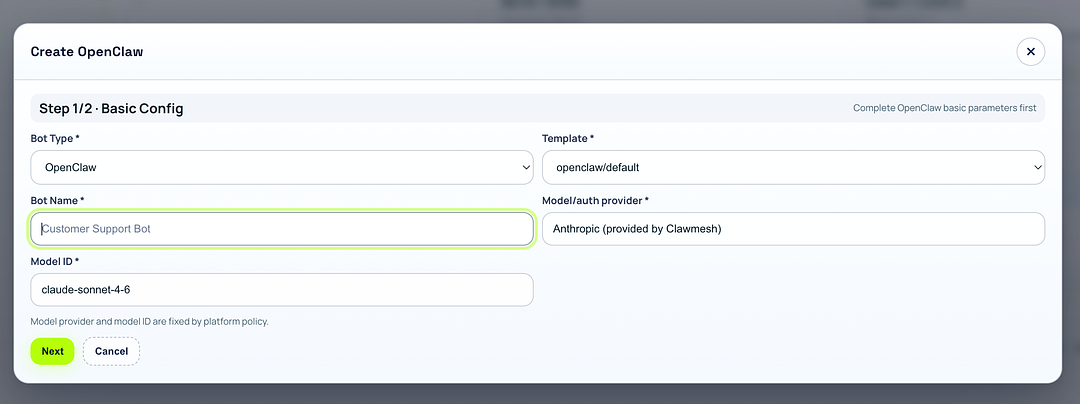
openclaw/default gives you the standard onboarding flow shown in the final Telegram chat effect.Choose Telegram as channel. Follow the built-in Get Bot Token Tutorial, create your bot via @BotFather, then paste the token into Bot Token. Click Create and Start Bot to finish creation and startup.
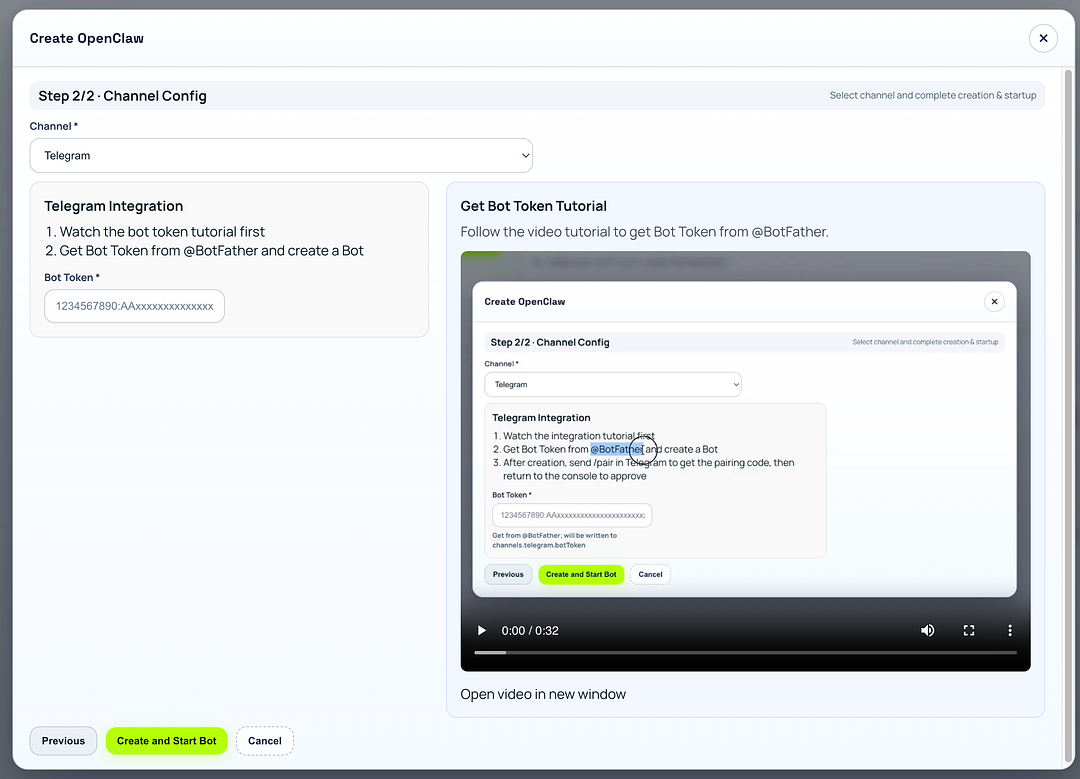
1234567890:AA...) and avoid extra spaces. If needed, use the official Telegram bot tutorial.Open Telegram and send /pair (or any message) to your new bot. Copy the pairing code returned by the bot, paste it into Pairing Code on the Telegram Pairing Approval screen, then click Approve Pairing.
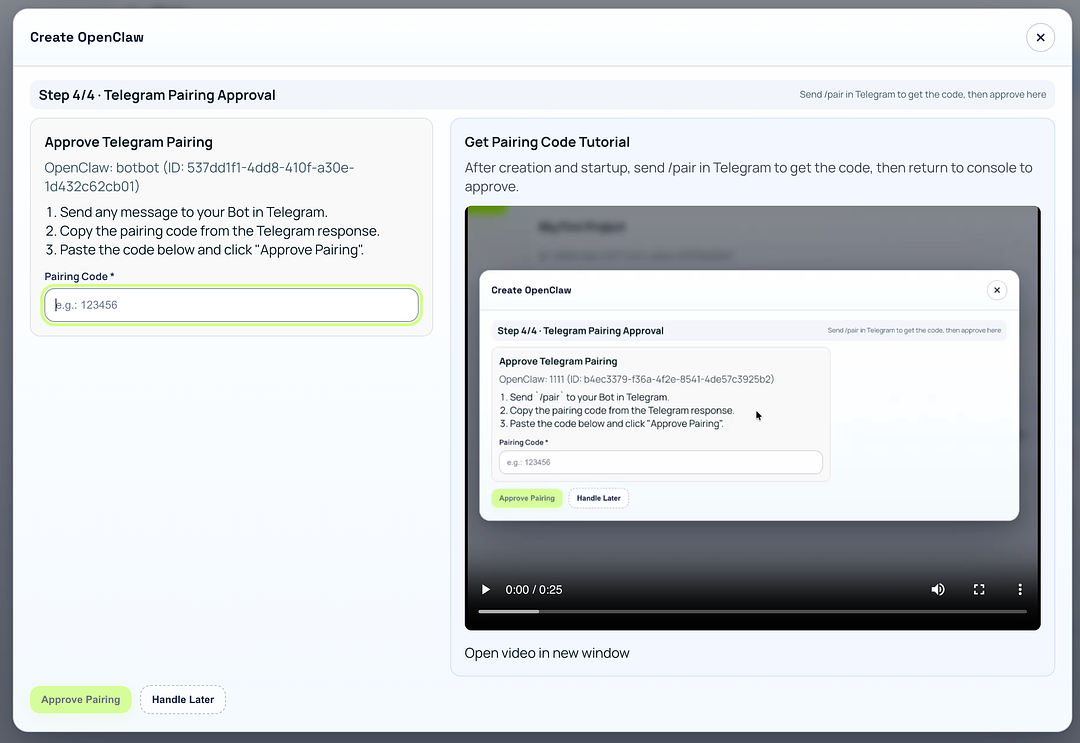
/pair to refresh the code and paste the newest one only.After pairing, send hello. You should see the onboarding message: identity setup, naming, vibe/personality questions, signature emoji, timezone, and work preferences. This means your OpenClaw is fully online and memory onboarding is working.
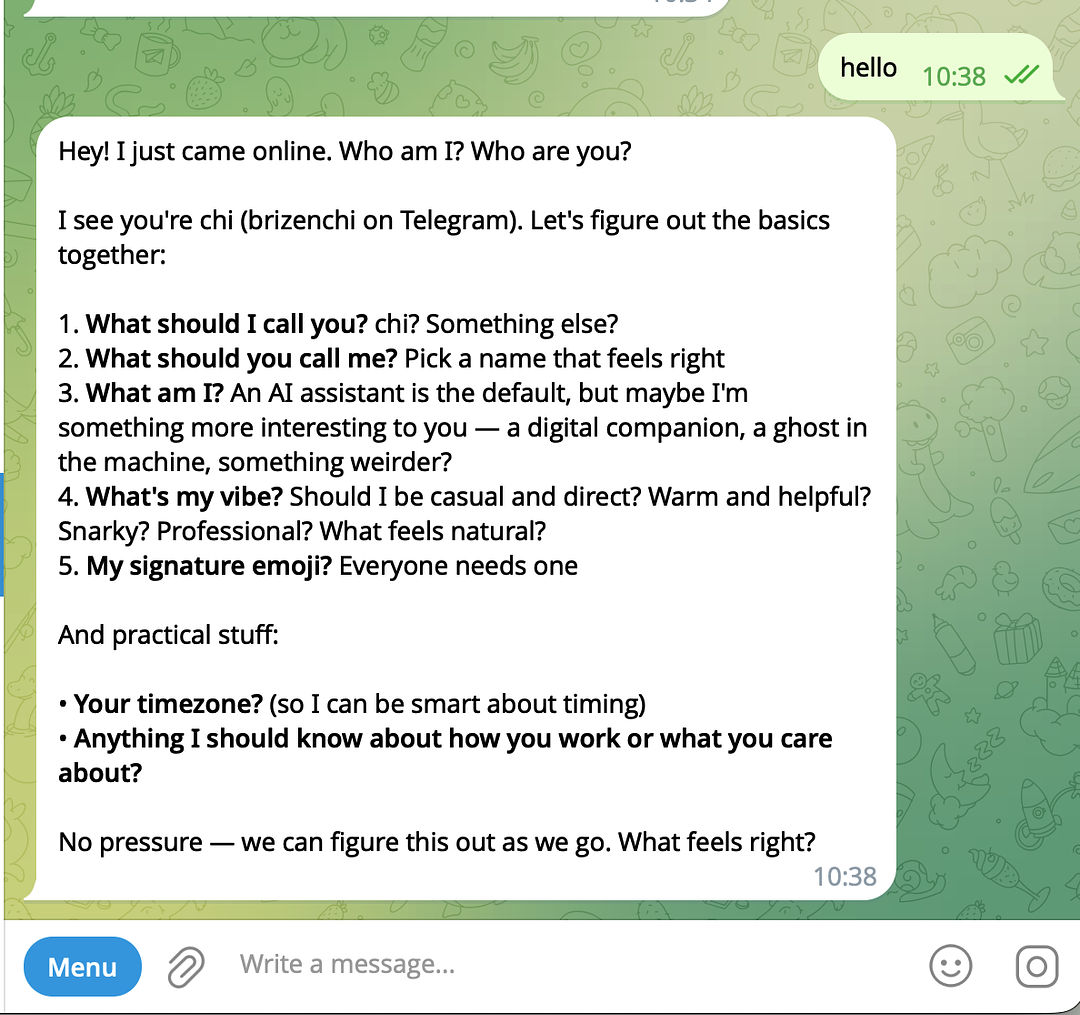
Compare your first Telegram reply with this checklist. If these appear, setup is complete and healthy:
Open Telegram, chat with @BotFather, run /newbot, and copy the generated token into the ClawMesh Bot Token field.
Send /pair again to generate a fresh code, then paste the newest code only. Old codes can expire after a short time.
No. In this tutorial flow, model/auth is provided by ClawMesh and preconfigured in Step 1/2 Basic Config.
After pairing, send hello in Telegram. If OpenClaw responds with onboarding questions and remembers your answers later, setup is complete.
Want more setup content? Use these internal links to keep exploring OpenClaw tutorials.
ClawMesh handles the infra. You just… talk to it. The Starter plan includes $50 of Claude credits — enough to really put it through its paces.